Print Product Labels
-
Navigate to the Print Product Labels window by typing “Print Product Labels” in the search box located at the top of the screen:

-
Choose the Source from which the labels will be generated:

Products -> you will have to look up products by products to print labels
Product Category ->you can select and print labels for products from a certain product category, such as “electronics”
Purchase Order/Material Receipt/Inventory Move -> you can print labels for products that belong to a selected PO, MR or Inventory Move
-
Add and select all the products that you wish to print label for:
-
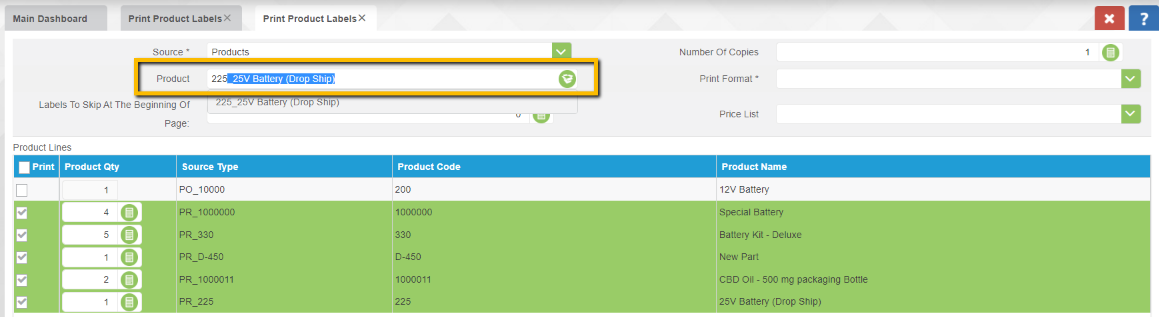
Type in the product’s search key or name in the Products field:
 Note: The selected source will determine the field through which users can add products. If the user selects Product Category as a source, the field right below the “Source” field will be “Product Category”.
 -
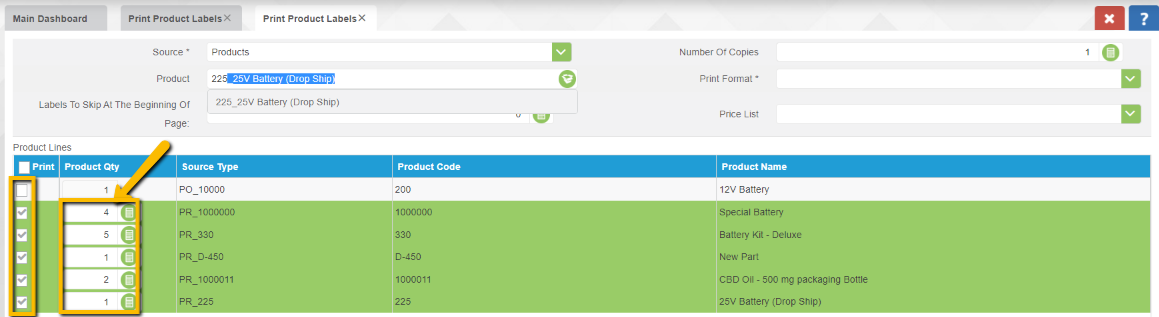
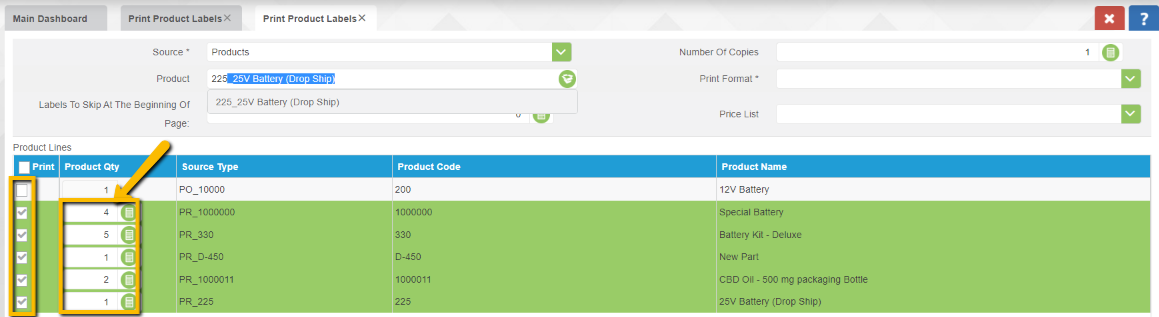
Check all the products that you wish to print from the “Product Lines” list and type in the desired number of labels that you wish to print for each one of the lines:
-
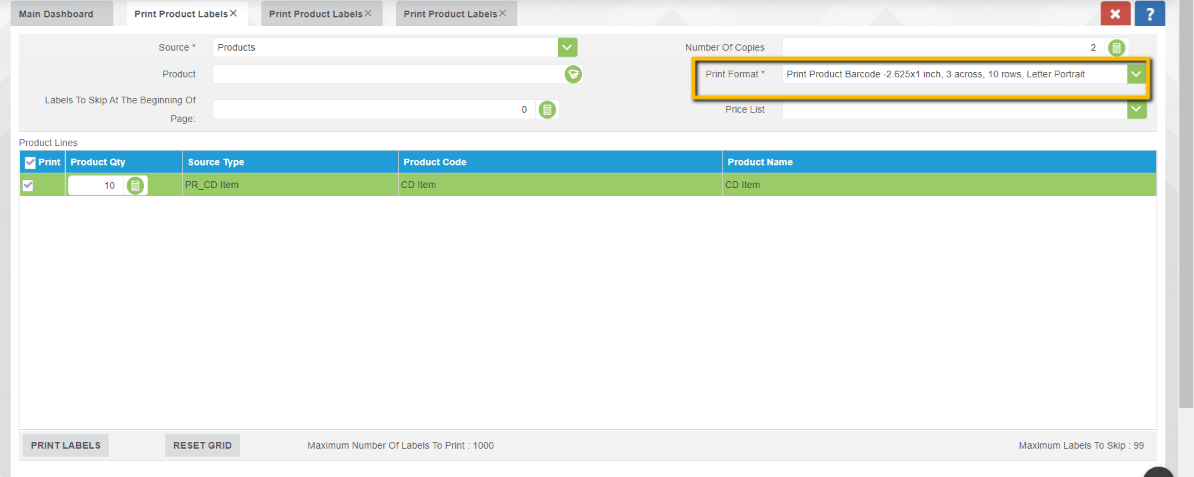
Select the print format that you want to use for printing the labels:
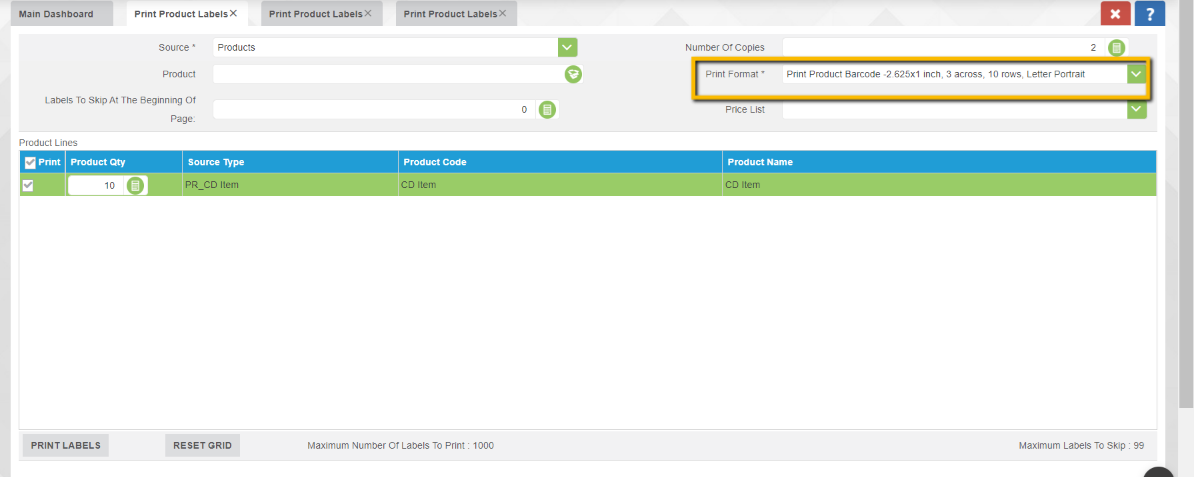
-
Type in the number of labels that you want to skip at the beginning of the page; if left 0 it will not skip any labels. Choose the desired Price List that will print on the labels; if left blank it will use the default price list.
-